
Card background and colors
Solid, ready-made or photo backgrounds, palettes and seasonal designs.
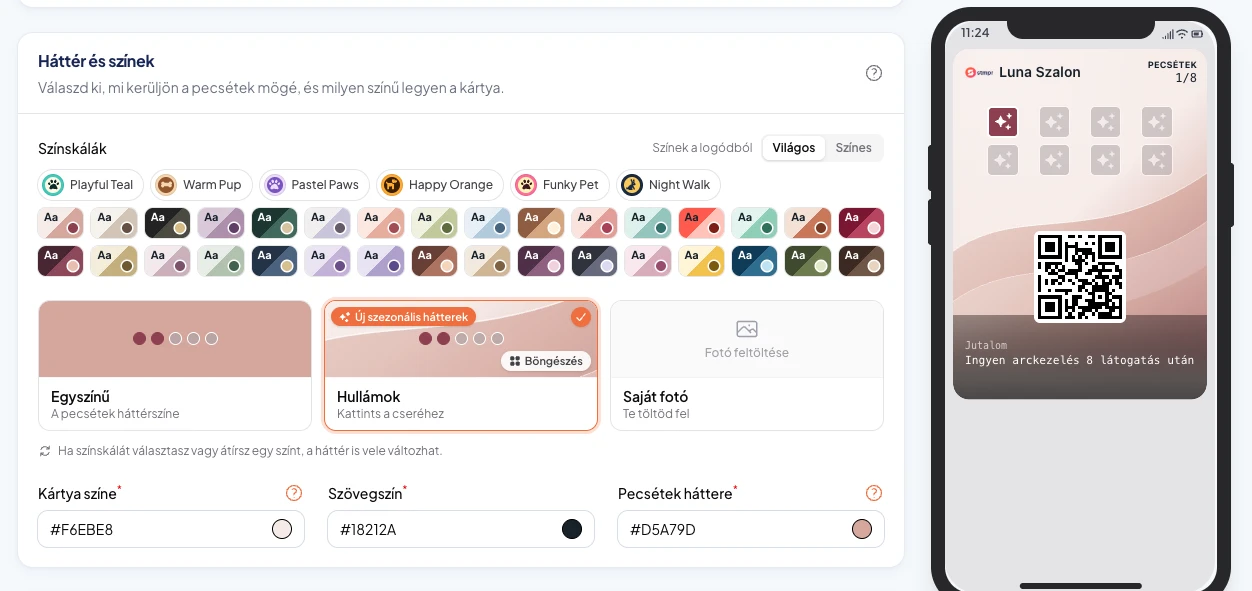
The background sets the mood of your card. Pick Solid, a design from Ready-made, or Own photo. Stamps, the QR code and the text always stay on top.
Ready-made patterns take on your card colors, so they work with any palette and follow along when you change a color.
Around the holidays, seasonal backgrounds appear too, such as fairy lights, snowy pines or gingerbread.
https://stmpr.io/dashboard/wallets/{id}/edit · Design
Why use this?
A well chosen background makes the card feel premium, and customers recognize it faster on their phone.
A seasonal background brings a festive look without creating a new card, even while customers keep collecting.
Patterns stay calm where the stamps sit, so progress is always easy to read.
Step by step
- Open the card editor Design tab and scroll to Background and colors.
- Pick one of the Palettes, or get colors from your logo with Colors from your logo.
- Click the Ready-made tile. The gallery has tabs for Patterns, For your business and Seasonal. When new seasonal backgrounds arrive, a small badge on the tile tells you.
- For your own photo, upload the image, then click the small previews to adjust the crop for iOS 27+, older iOS and Google. Your own photo comes with the Start plan; the ready-made backgrounds are on every plan.
- At the top of the preview, switch between Apple (iOS 27+), Apple and Google Wallet to see the background in all three places.
- Save with Save. Cards already on your customers' phones pick up the new background at their next update.