
Business link management
Website, social profiles, menu, price list, reservation and unique links.
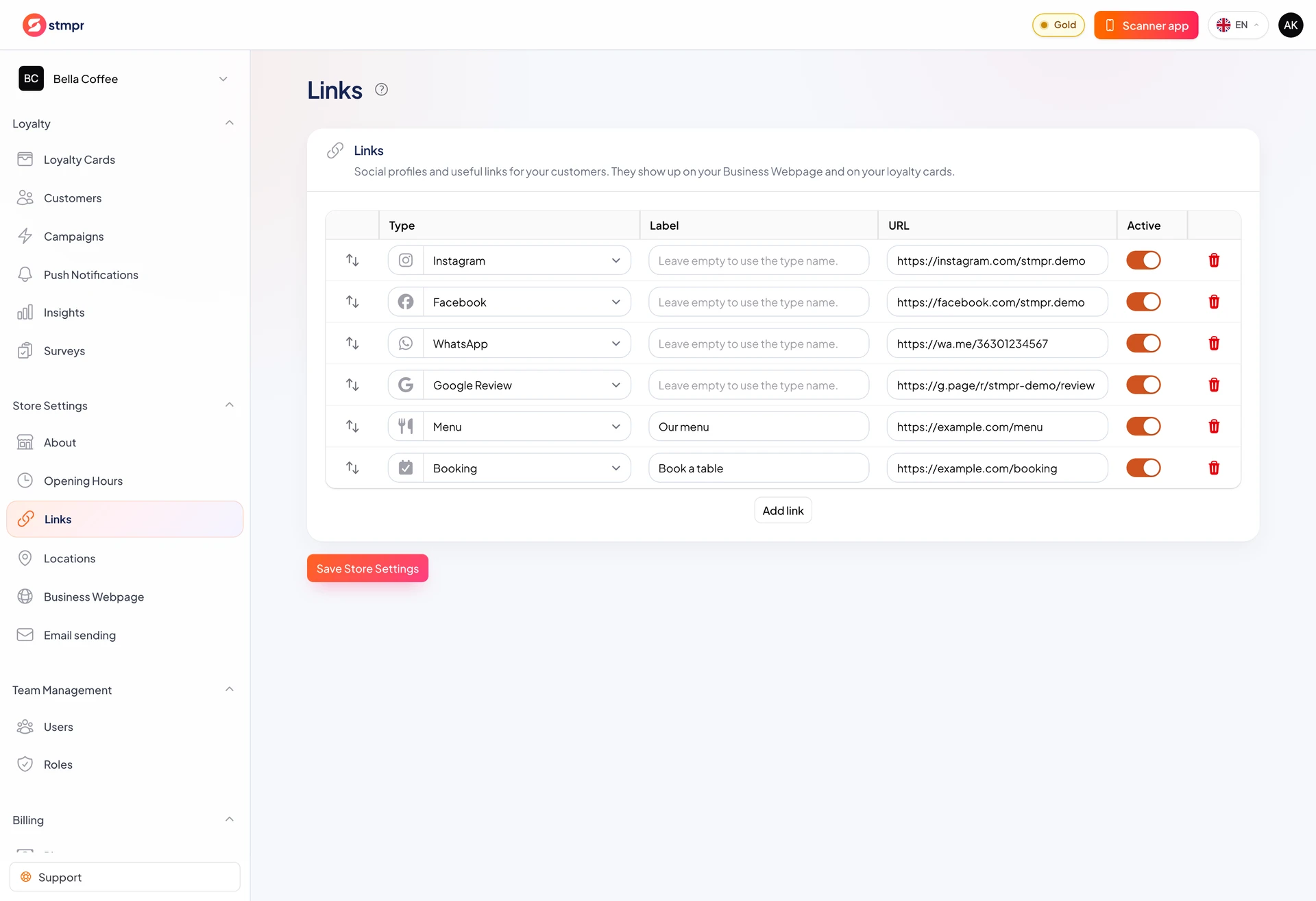
Under Store Settings Links manage customer-facing links in one place.
Add website, social, WhatsApp, menu, price list, booking, or custom URLs.
Active links show on the public business webpage and optionally on pass backs.
https://stmpr.io/dashboard · Business page · Links
Step by step
- Open Store Settings Links.
- Click Add link and pick type.
- Add label or use default type name.
- Paste the URL and keep Active on. A bare domain such as example.com is fine, stmpr adds https:// when you save.
- Reorder links and Save.
- To show on passes, enable show business links in the card editor.