
Redeem a reward from the control panel
Record and log redemptions.
Redeeming from the dashboard matches the scanner: redemption is recorded, the card resets, and the event logs under the signed-in team member.
Use the green gift (Redeem reward) icon at the end of the row in Customers.
The button appears only when the customer has enough stamps and you have redeem permission.
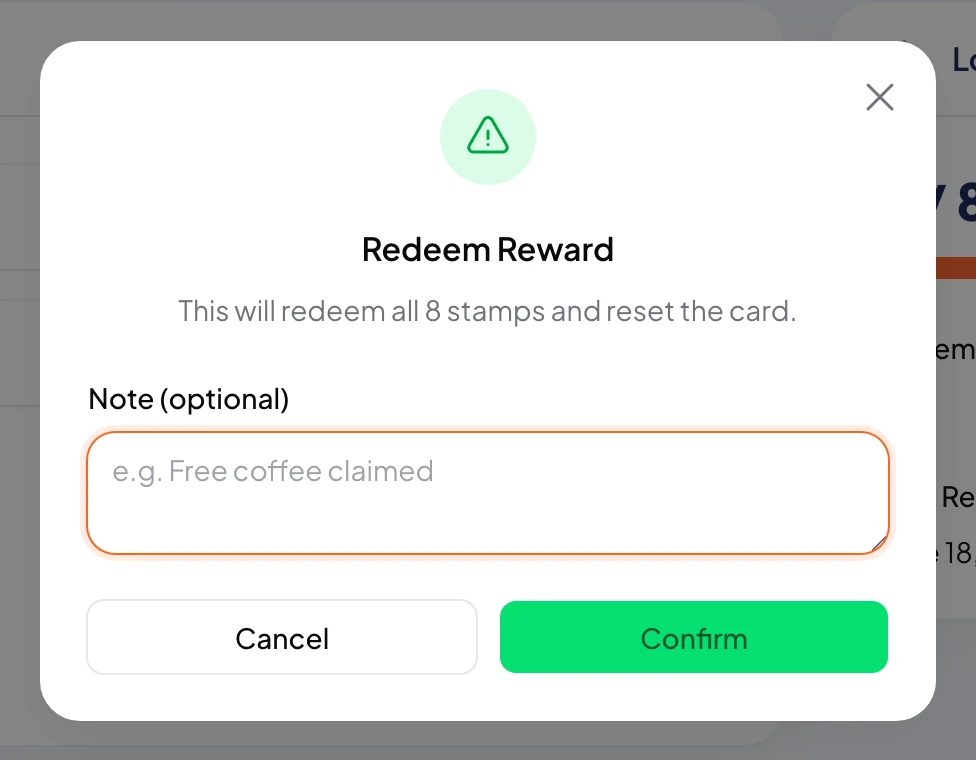
https://stmpr.io/dashboard/customers · Redeem modal
Why use this?
Quick from a desk when the scanner is not available.
Confirm dialog prevents accidental redemption before stamps zero out.
Optional notes document what the customer received for reports and coordination.
Step by step
- Open Customers on the dashboard.
- Find a ready customer or filter Ready to redeem.
- Click the green Redeem reward button on the row.
- Review stamp count and reset in the dialog. Add an optional note.
- Confirm. Stamps return to zero and redemption is logged.
- The Wallet pass updates shortly; redemption appears in the activity log.
Good to know
- Redeem needs its own permission, separate from stamping.
- Redemption clears stamps. Repeat programs let customers start again.
- If redeem limits apply, the button hides for customers who hit the limit.