
Mandrill integration
Prerequisites, setup, field mapping, testing, and troubleshooting for the Mandrill connection.
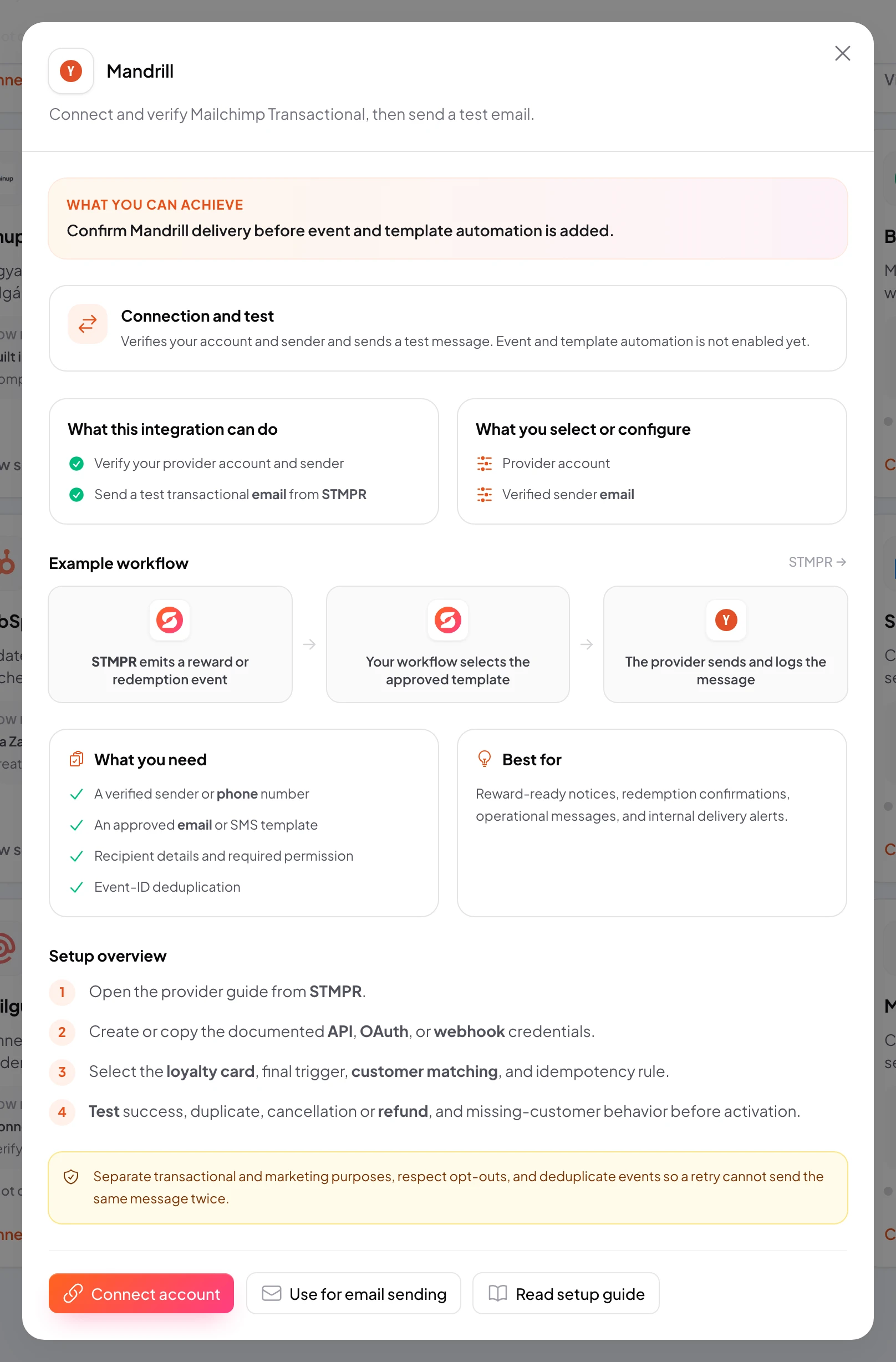
Use the Mandrill integration to send the selected Mandrill template.
stmpr sends the selected data to the provider.
Connecting the account does not activate a workflow by itself. Select the loyalty card, trigger, destination action, and customer matching rule separately.
Mandrill
Image placeholder: Mandrill: create the required access
https://stmpr.io/dashboard/integrations
Why use this?
Replace manual data transfers with a verified and observable workflow.
Idempotency prevents duplicate rewards, while consent gates protect marketing data transfers.
- 1A reward or consented transactional event
- 2Authentication, duplicate protection, and customer matching
- 3Send the selected Mandrill template
Step by step
- Prepare a Mailchimp Transactional API key and verified sending domain.
- Create the required API, OAuth, or webhook access in Mandrill with the narrowest practical permissions.
- In stmpr, open Developers → Integrations and choose Connect.
- Select the loyalty card, trigger event, and destination action.
- Configure customer matching. Prefer email or phone; use a provider ID only as a stable secondary key.
- Run a test with a test customer, then deliver the same event again to verify duplicate protection.
- Test failed delivery, revoked access, a missing customer, cancellation or refund, and consent withdrawal.
- After activation, monitor the first live events. To disconnect safely, disable the workflow before revoking provider access.
What you select and verify
- Trigger: a reward or consented transactional event
- Action: send the selected Mandrill template
- Loyalty card, business, or location
- Customer matching and required fields
- Consent, refund, cancellation, and no-show rules
- Test data, duplicate protection, and delivery log