
Use Kiosk Mode
The guest stamps themselves on the phone or tablet displayed on the counter.
Kiosk mode lets a counter tablet stamp without staff: the customer shows Wallet QR, the camera reads it, and the stamp applies. No employee step.
The customer scans their own pass, so the stamp always matches the card on screen. After scan the kiosk shows feedback briefly then returns to start.
Abuse is limited server-side: same customer cannot get another kiosk stamp within an hour and daily caps apply. Friendly messages explain limits.
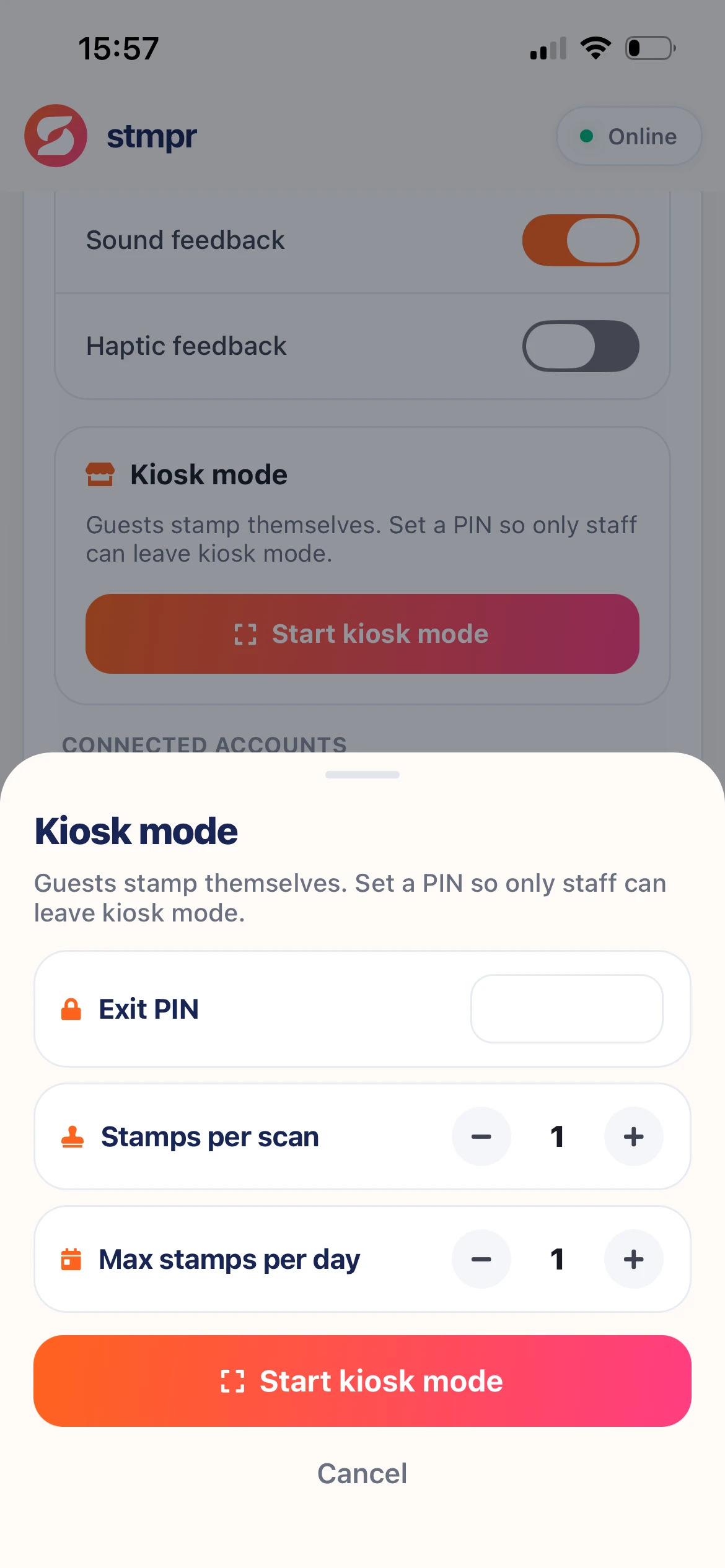
Scanner app · Settings · Kiosk
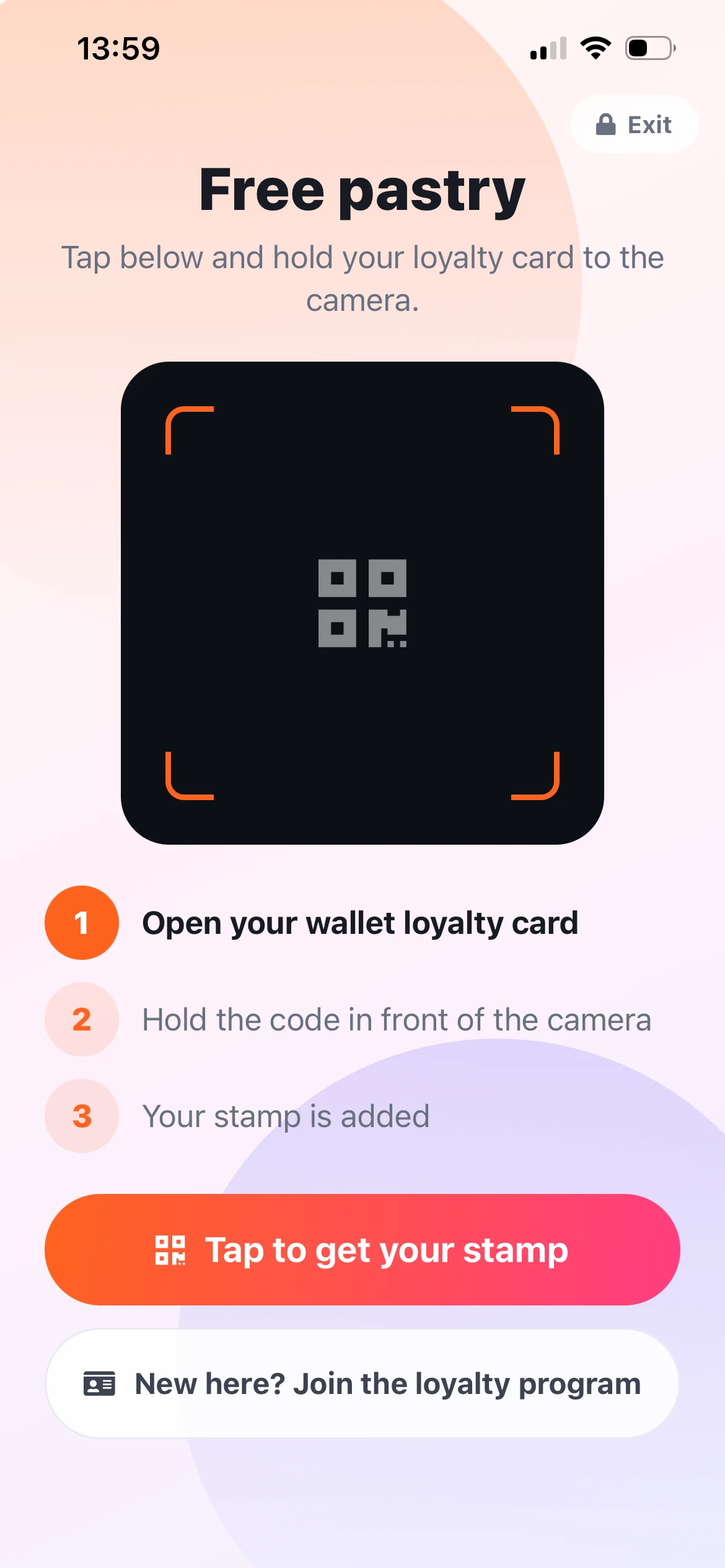
Scanner app · Kiosk home
Step by step
- Open scanner Settings and find Kiosk mode.
- Set a four-digit exit PIN to leave kiosk mode.
- Choose stamps per scan and daily stamp cap per customer.
- Start kiosk mode and place the device at the counter. Screen stays awake; portrait and landscape work.
- Customer taps start, camera runs 10 seconds, QR scan adds stamp.
- Long-press the lock icon top-right and enter PIN to exit.