
Stamp icons and shapes
Stamp arrangement and welcome stamp.
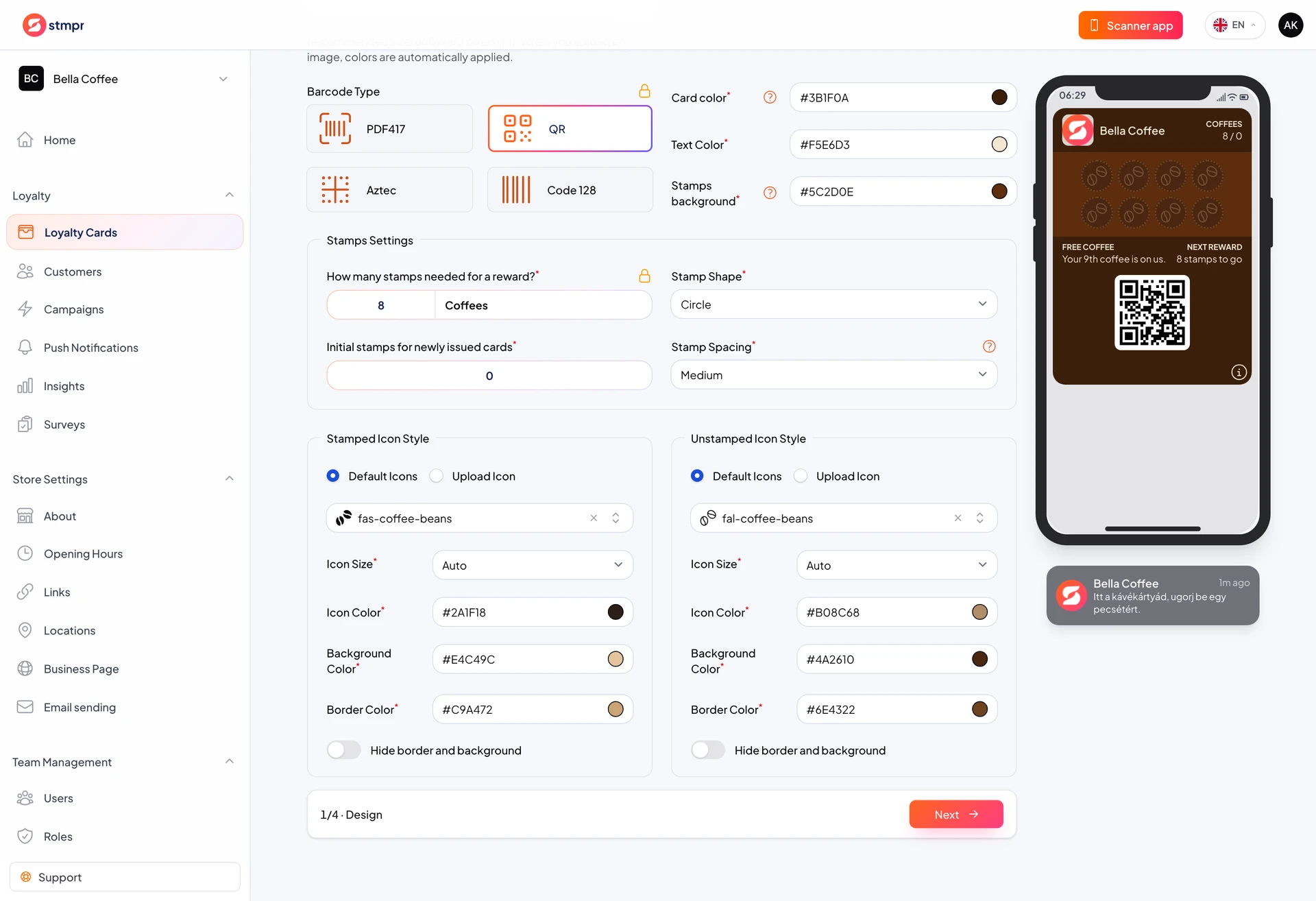
Stamp icons show customer progress toward the reward. You can choose a shape, a built-in icon, or your own image.
In the Design tab stamp settings you control layout, filled and empty states, and the welcome stamp.
Well chosen icons make the program obvious without a spoken explanation.
https://stmpr.io/dashboard/wallets/{id}/edit · Design
Why use this?
Visual progress motivates more than a number alone. Customers see how close they are to the reward.
A welcome stamp gives an instant win that raises the chance of a return visit.
Custom icons (coffee bean, scissors, and so on) make the program feel personal.
Step by step
- Open the stamp settings on the Design tab.
- Choose the stamp count and layout style.
- Set the filled stamp icon and how empty stamps look.
- Optionally enable the welcome stamp for new customers.
- Check in the preview that progress is easy to read.
- Save the settings.