
Scan your guest card
Read the QR code and add a stamp.
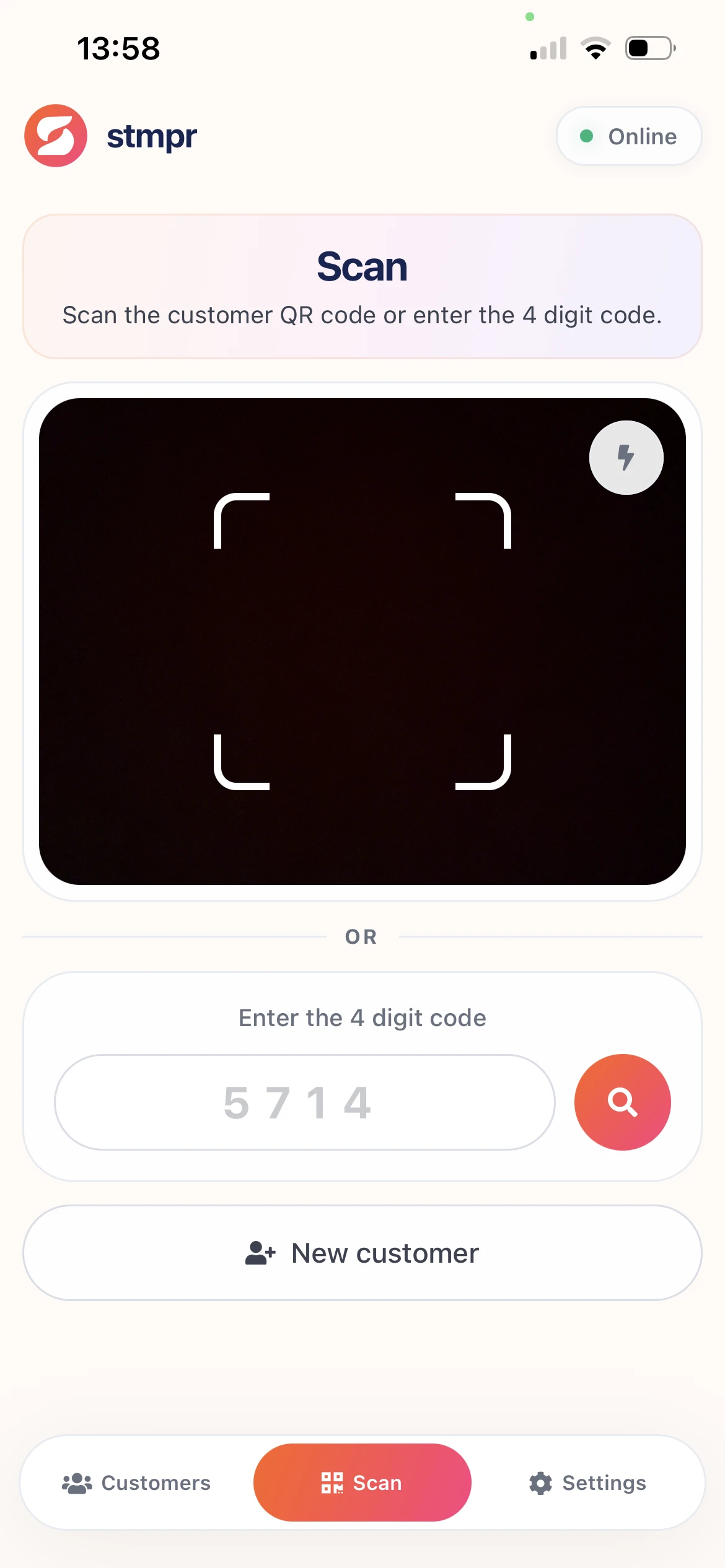
At the counter the fastest path is: customer shows Wallet QR, you scan in the scanner app, you add a stamp.
The app recognizes the customer, shows the current stamp count, and updates the pass after confirmation.
The pass updates on the customer phone automatically.
Scanner app · Camera / stamp success
Why use this?
QR scanning takes seconds. No manual lookup in a list.
Less risk of stamping the wrong customer than manual ID.
Activity is logged for later review.
Step by step
- Open the scanner app and choose Add stamp.
- Point the camera at the QR on the Wallet pass.
- The app shows the customer and current stamp count.
- Confirm with Confirm.
- Ask the customer to verify the updated pass.