
Card design basics
Use colors, templates, and preview.
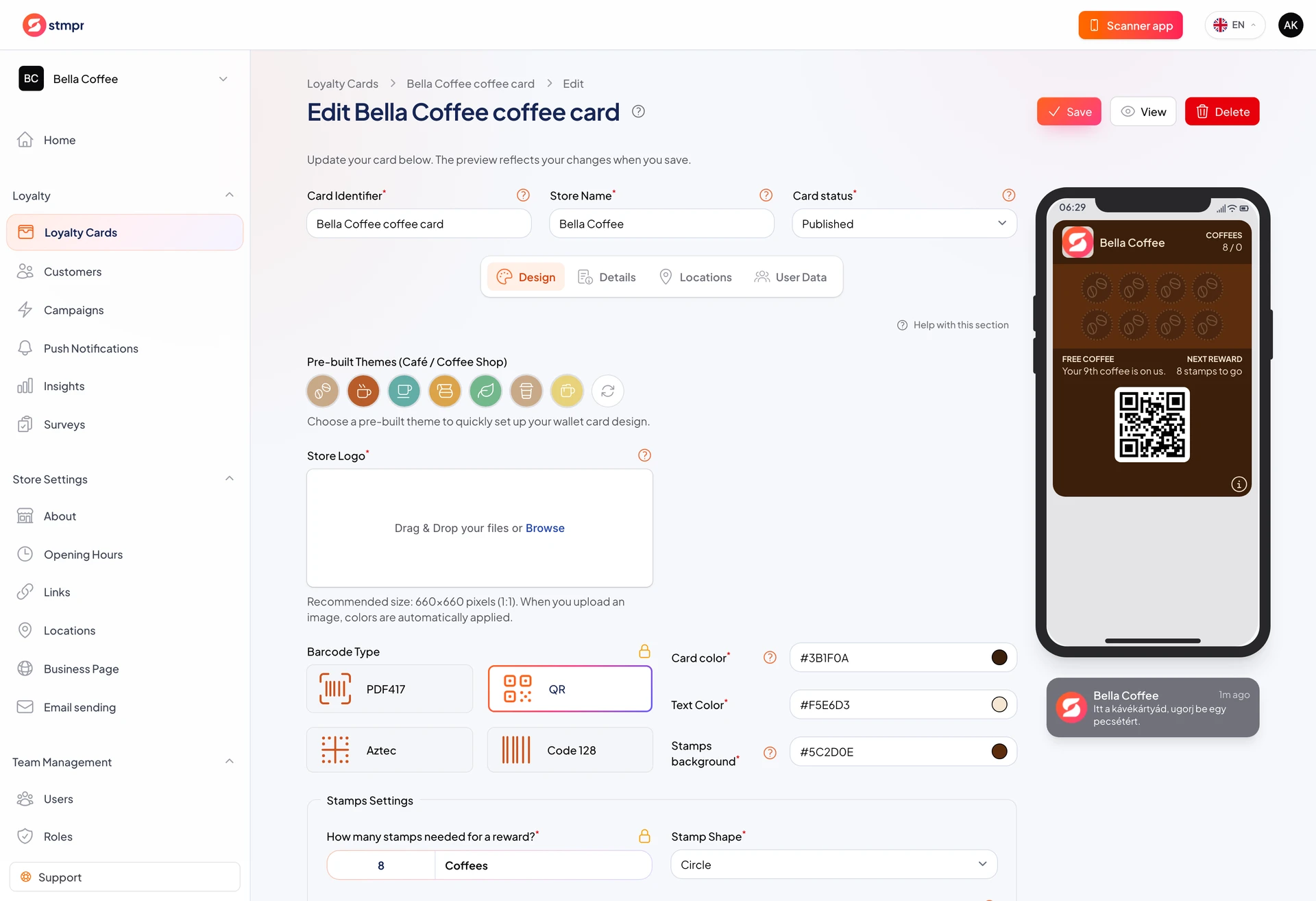
On the Design tab you build how the card looks. The phone preview shows in real time what customers see in Wallet.
Here you choose colors, template, stamp icons, and layout. Good design stays readable at the counter and on a phone.
Design can change on draft and published cards, though some fields may lock after publish.
https://stmpr.io/dashboard/wallets/{id}/edit · Design
Why use this?
Customers see the card every day. Recognizable colors and logo strengthen your brand.
The preview saves trial and error: you instantly see if text is unreadable on the background.
The right stamp count and icons show progress visually, which motivates return visits.
Step by step
- Open the card editor and click the Design tab.
- Pick a predefined theme for your business type, or set colors manually.
- Set the card background, text color, and stamp field color.
- Choose the stamp count (between 2 and 16).
- Set stamp icons, or upload your own images.
- Review the phone preview in both light and dark appearance.
- Click Save.