
Complete the initial setup
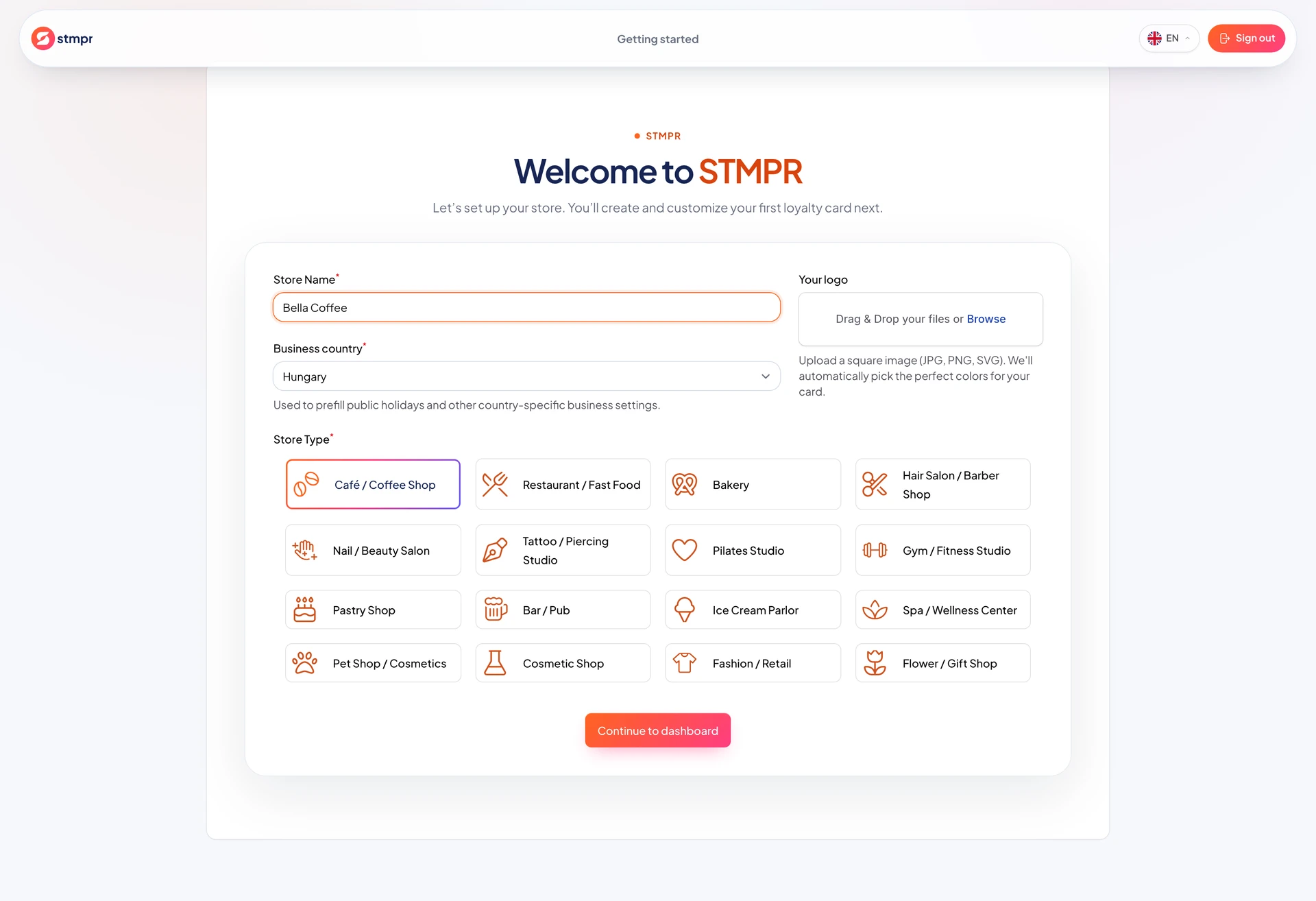
Specify a store name, logo, and store type when you first log in.
Onboarding opens automatically on first login and walks you through your store basics. We use these details to suggest card templates, colors, and copy.
It only takes a few minutes, but filling it in carefully pays off: your logo and business type show up again in the card design.
If you skip something now, you can edit the same fields later in Store Settings.
https://stmpr.io/dashboard (onboarding)
Why use this?
With solid basics, your first loyalty card is ready faster and needs less manual tweaking on the Design tab.
Business type helps us show relevant templates (cafe, salon, restaurant, and more) that already come with readable color pairs.
Uploading a logo makes a more professional first impression when customers join.
Step by step
- After first login, the onboarding screen appears automatically.
- Enter your store name and website URL if you have one.
- Upload your logo. The system may suggest card colors from it.
- Choose your business type from the list (for example cafe, hair salon, restaurant).
- Review the details, then click Save or Finish.
- After a successful save you land on Home.