
Create your first loyalty card
Step by step to the launch of your first loyalty program.
After you create your first loyalty card, customers can join with a QR code or link and save the card to Apple or Google Wallet.
The flow goes through the card editor: design, reward, location, then publish and share.
This article walks you from draft through the first test stamp.
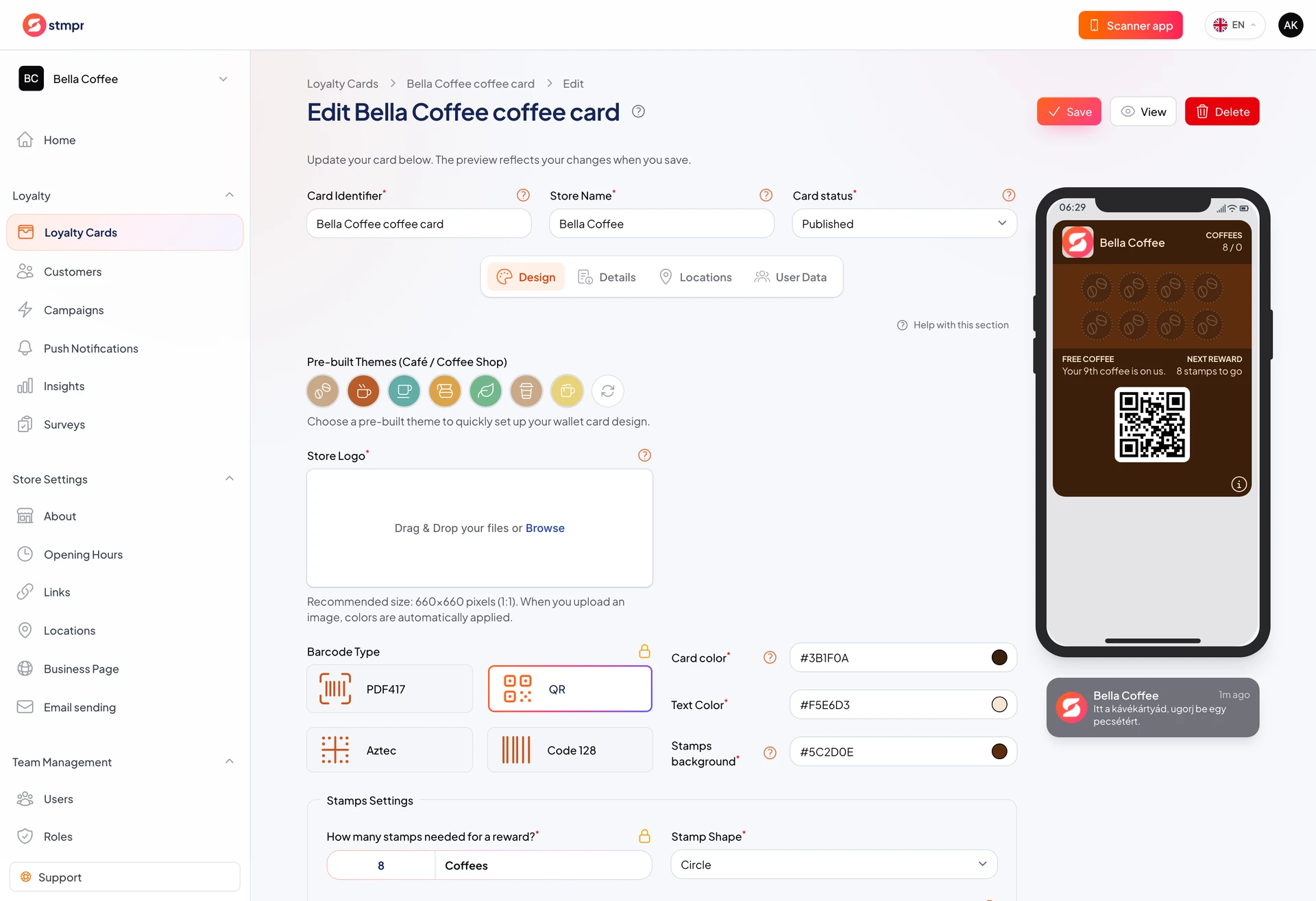
https://stmpr.io/dashboard/wallets/{id}/edit · Design
Why use this?
Your first card sets the customer experience. A clear reward and readable design raise enrollment.
Skipping the test can hide issues until go-live, such as a broken link or stamps that do not update.
Attaching a location early matters if you want nearby reminders.
Step by step
- Go to Loyalty Cards and start Quick setup or Full setup.
- On the Design tab, pick a template, upload your logo, and set the stamp count.
- On the Details tab, write the reward and requirement (for example “Collect 8 stamps, get a coffee”).
- On the Locations tab, link the card to at least one store address.
- Save as a draft and test enrollment on your phone with the link on the Share tab.
- Add a test stamp from the scanner app or the dashboard, and check that it appears in Wallet.
- When everything looks good, publish the card. See the publish article for details.