Availability
Kiosk mode lives in the scanner app; staff configure it right on the device.
Plans and pricingAt fast counters, events and food trucks, staff may not have time to scan every card. In kiosk mode a phone or tablet on the counter reads the guest's own Wallet pass, with no staff involvement.
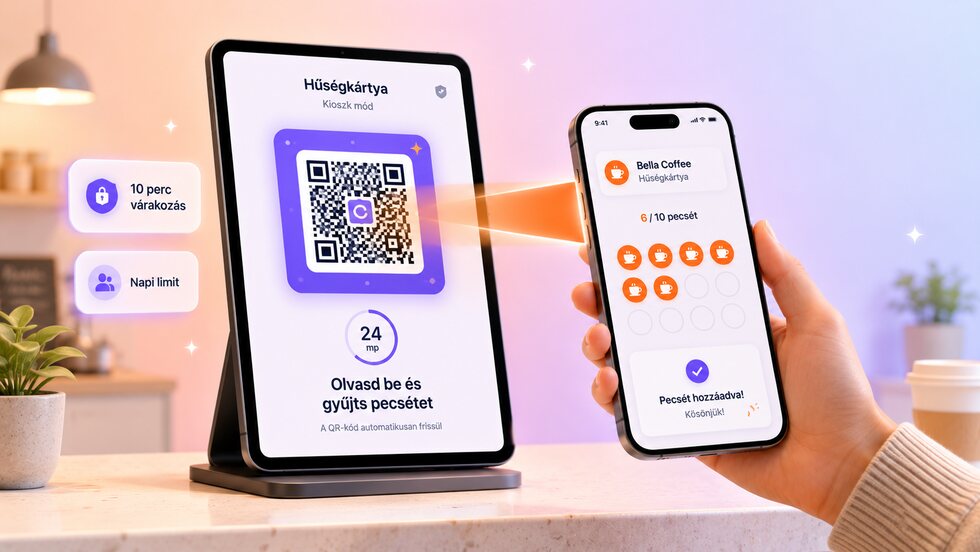
Let guests stamp themselves: a counter device reads their Wallet pass, with cooldowns, daily limits and a PIN exit.
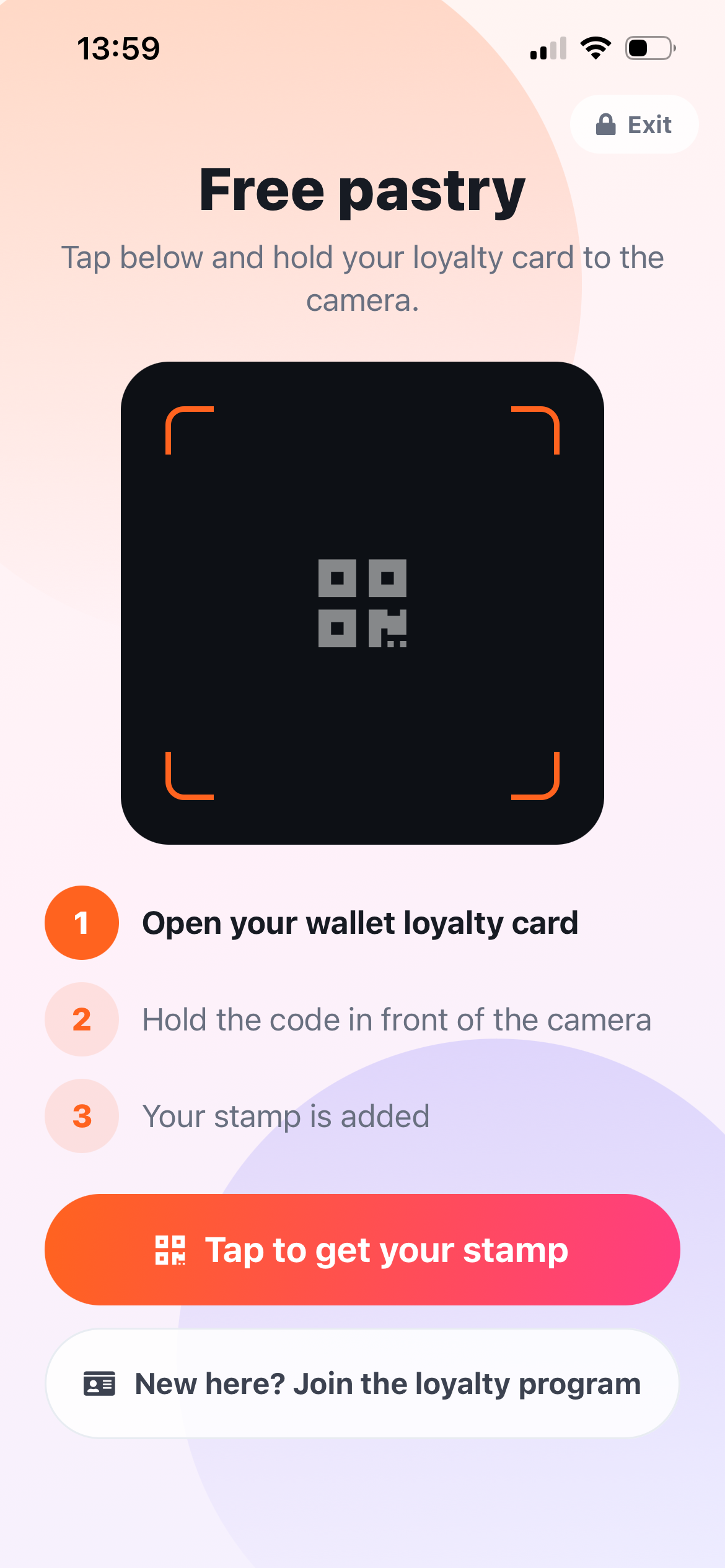
Set a 4 digit PIN, the stamps per scan and the daily limit in the scanner app.
Start kiosk mode and place the device on the counter. The screen never sleeps.
The guest taps, opens their Wallet pass and holds the code to the camera.
Follow kiosk stamps and blocked attempts in the activity log.
Kiosk mode lives in the scanner app; staff configure it right on the device.
Plans and pricingGuests can join without giving an email, and you only collect the data you actually need. Personal details are never required to issue a card or add a stamp. No per-customer or per-scan fees, and guest limits depend on your plan.
The guest scans their own pass, and server-side limits keep the flow quick without inviting abuse.
| Area | Common workaround | stmpr |
|---|---|---|
| Code | A printed QR can be photographed and reused anywhere. | The kiosk reads the guest's own Wallet pass, so there is no shared code to copy. |
| Frequency | The same guest may repeat the action immediately. | A one-hour cooldown and a daily limit are enforced on the server. |
| Visibility | Self-service actions disappear into an untracked total. | Kiosk stamps and blocked attempts appear in an audit trail. |
Short walkthroughs with screenshots from the knowledge base, in case you get stuck.
Create your first Apple and Google Wallet-based loyalty card and try stmpr free.
Try it free